.png?width=128&height=72&name=Hema%20Maps%20Logo%20(1).png)
Method 1 - Crash popup
-
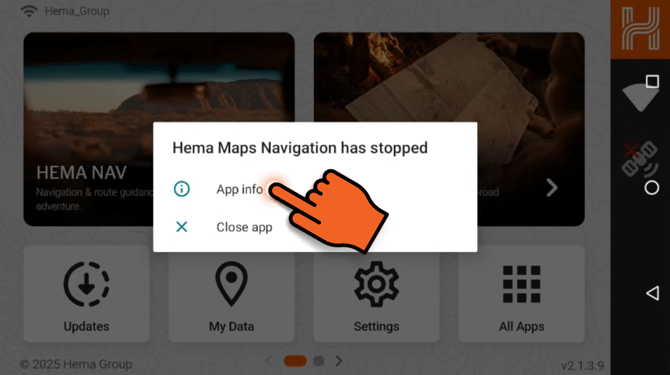
Launch Hema Nav until you see the ‘Hema Maps Navigation has stopped’ popup, then press App info.
-
If no popup appears, go to Method 2.
-
-
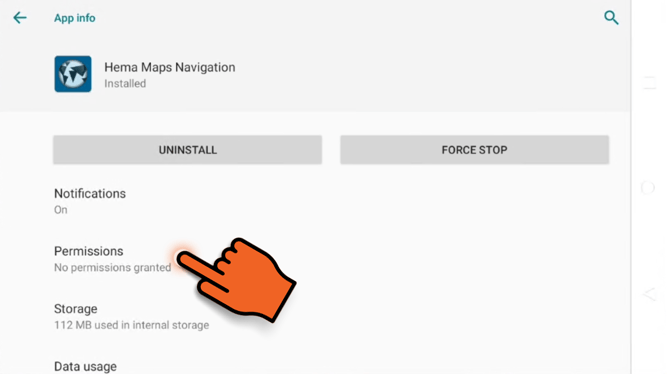
Tap Permissions.
-
After reinstalling, this screen shows “No permissions granted”
-
-
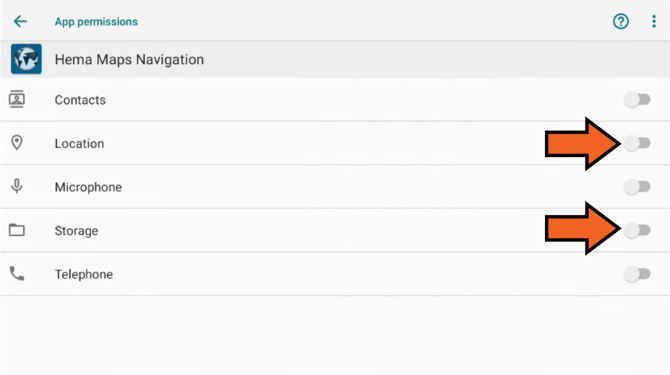
Enable Storage and Location at minimum (All recommended)
-
Return home using the system navigation, then try to launch Hema Nav again.
Method 2 - Without crash popup
-
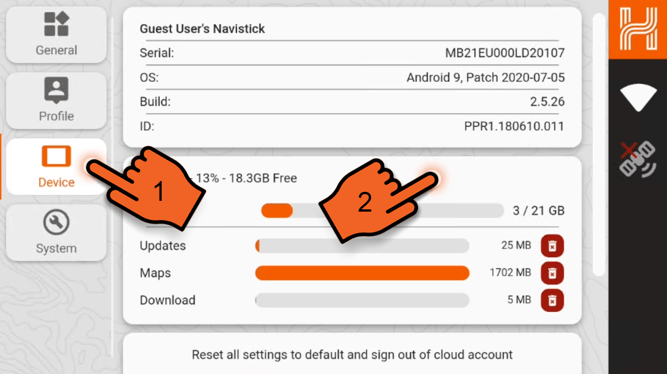
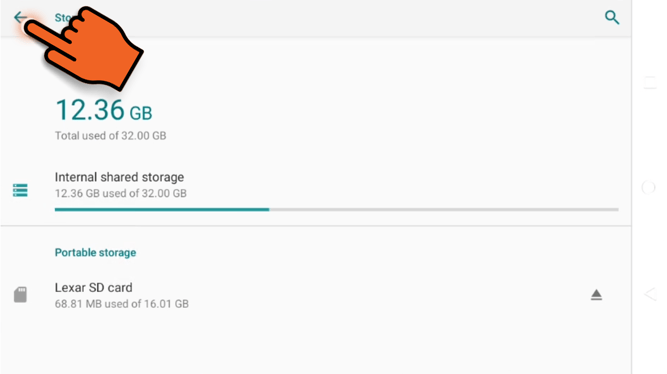
From the home screen, go to Settings → Device[1] and tap the storage[2] card to open the Storage settings.
-
Press the arrow in the top left corner of the Storage screen to return to the main Settings menu.
-
Navigate to Apps & notifications > Hema Navigation, then continue from step 2 of Method 1.
.png?width=670&height=376&name=Hema%20Nav%20Issue%20Image%20(1).png)
We hope this guide has helped you resolve the issue and get back to navigating. If you continue to experience problems, please contact our support team for further assistance. Safe travels!