.png?width=128&height=72&name=Hema%20Maps%20Logo%20(1).png)
- Your Hema Navigator can access the Hema 4WD Maps application.
- Both your Hema Navigator and your PC are connected to Wi‑Fi.
On your Hema Navigator
- From the homepage, press "My Data"
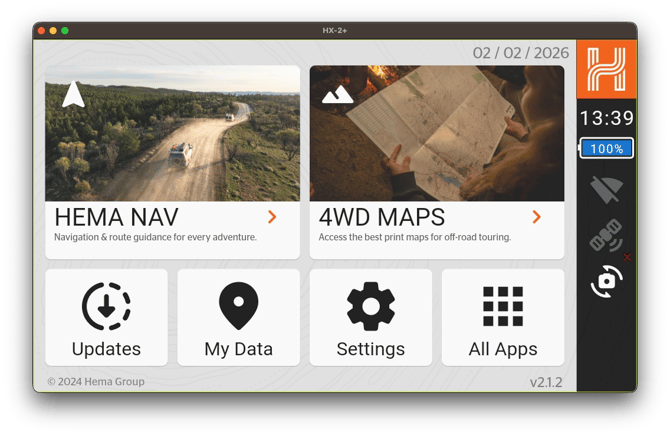
-
This will open the My Data page.
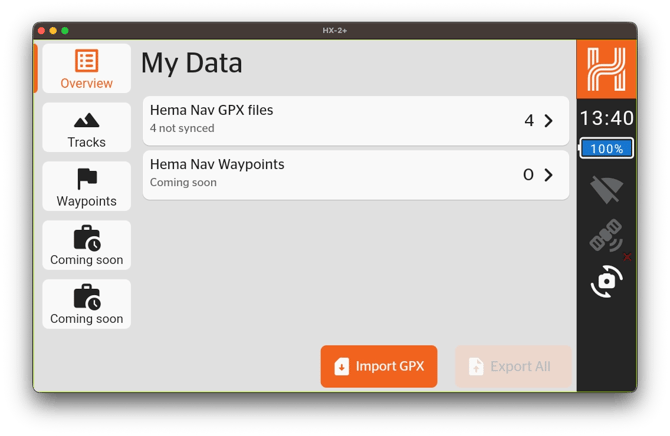
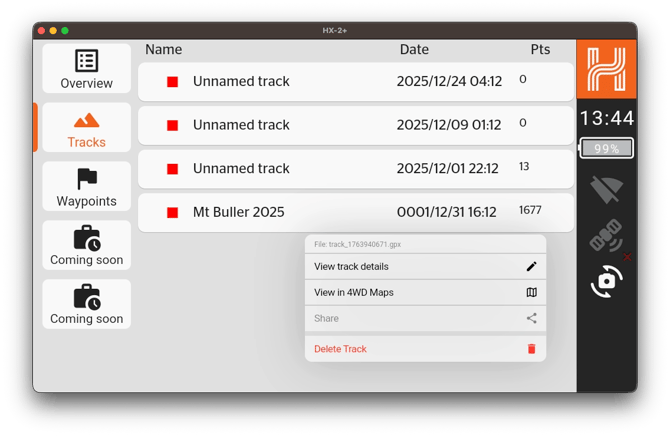
- On the left‑hand side of the page, select “Tracks”.
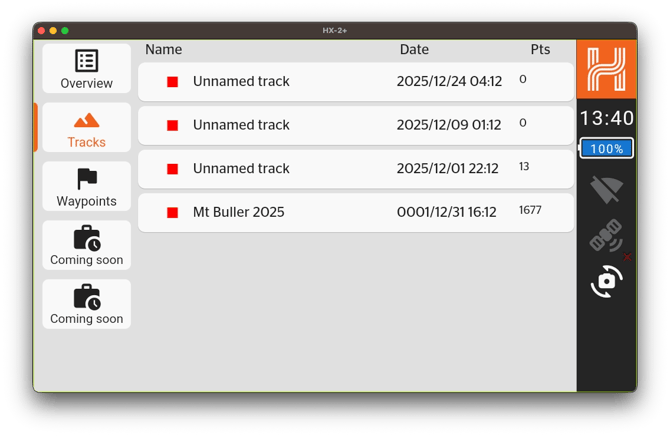
- Tap and hold on an individual track, then select “View in 4WD Maps”.
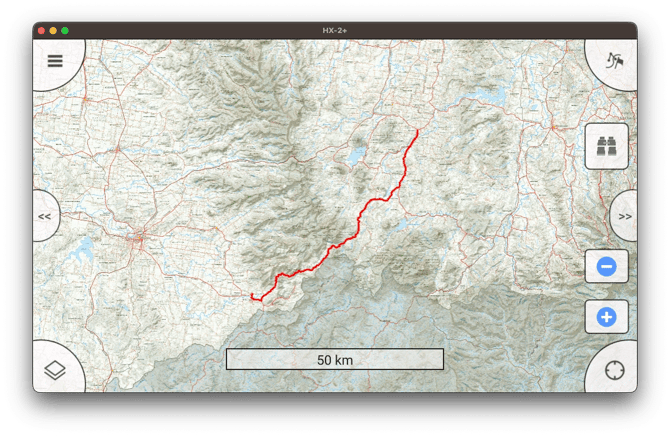
- Hema 4WD Maps will open with the track displayed in the centre of the screen. This track has now been imported into 4WD Maps.
- To import another track, exit Hema 4WD Maps by pressing the button in the top left corner (three horizontal lines), and selecting "Quit App", then repeat the above steps until all of your required tracks have been imported into 4WD Maps.
- During this process, you may be prompted to sign in to your account. This is required because the Cloud Sync feature uses your account to link your Hema Navigator and your PC.
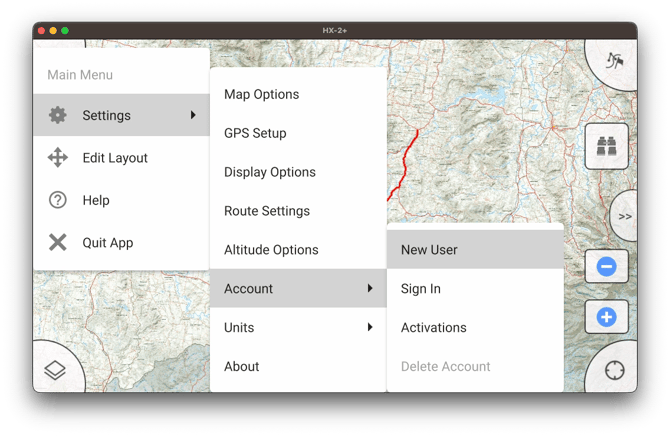
- If you have not received a prompt, press the button in the top left corner (three horizontal lines), then select Settings > Account > Sign in.
-
- If you have not yet created a Memory Map account (the developers of this application), press "New User" and complete the required fields to create an account.
- Once you have signed in, you will be returned to the map screen.
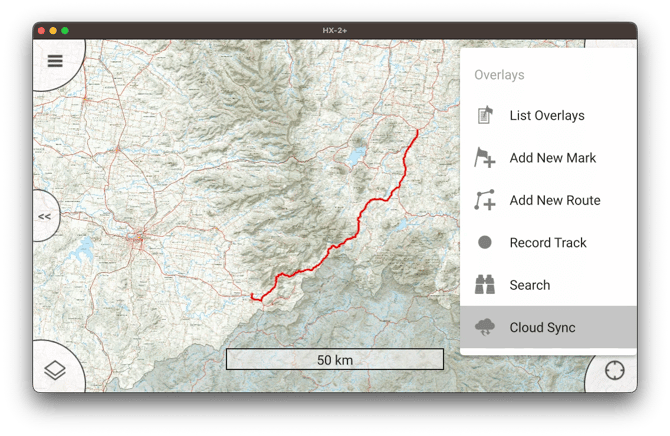
- Click on the button in the top right corner (flag with a squiggly line) to open the Overlays menu.
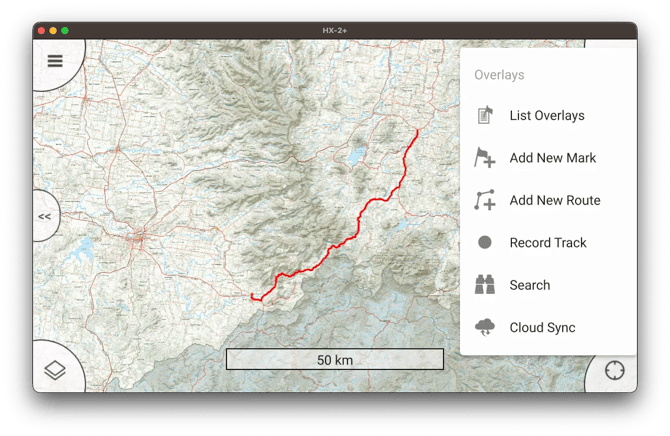
- Click on “Cloud Sync”. This will upload all of your imported tracks to the cloud so you can access them on your PC.
On your PC
-
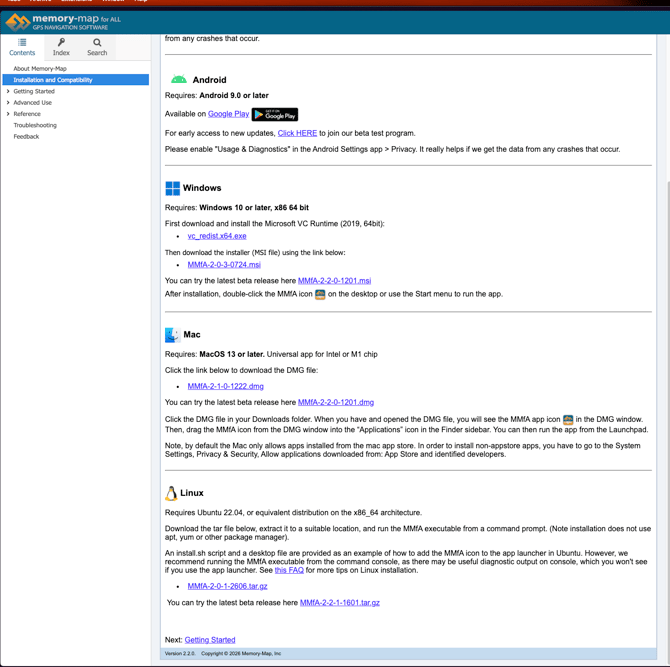
Select the Memory Map application for your operating system (Windows, Mac, Linux) from the Memory Map website.
-
Follow the installation instructions to ensure the application is installed correctly.
-
-
After you have installed the Memory Map For All (MMfA) application, launch the program.
-
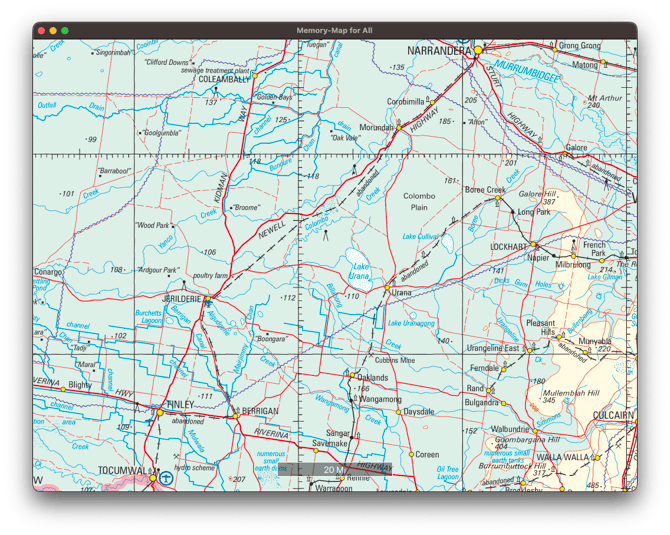
A map will be displayed on your screen.
-
-
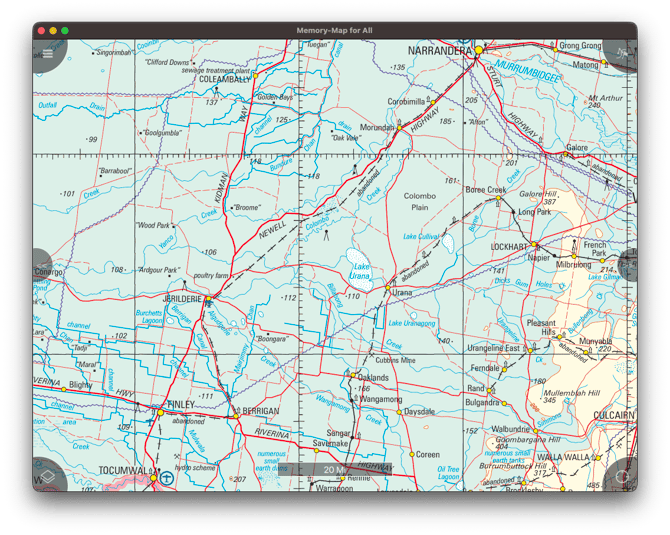
Click anywhere on the map screen to display the on‑screen buttons.
-
If you do not touch the screen for approximately five seconds, these buttons will disappear; simply tap the screen again to make them reappear.
-
-
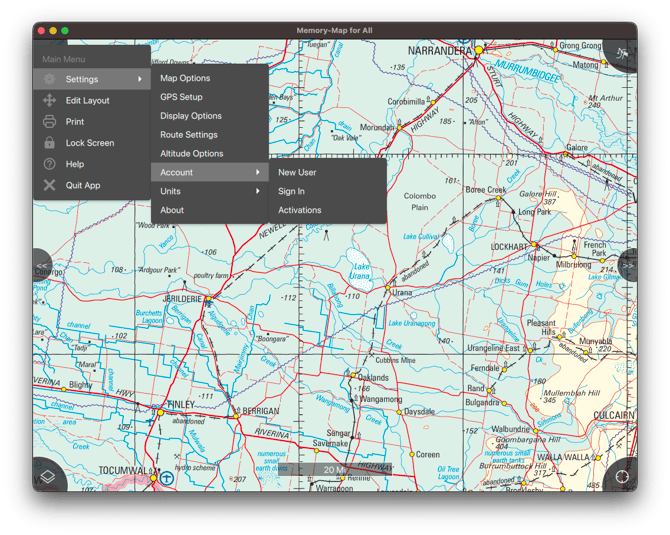
Press on the button in the top left corner (three horizontal lines), press "Settings" > "Account" "Sign in".
-
Sign into your Memory Map account. Ensure it is the same account as you have used on your Hema Navigator.
-
-
Once you have signed in, you will be returned to the map screen.
-
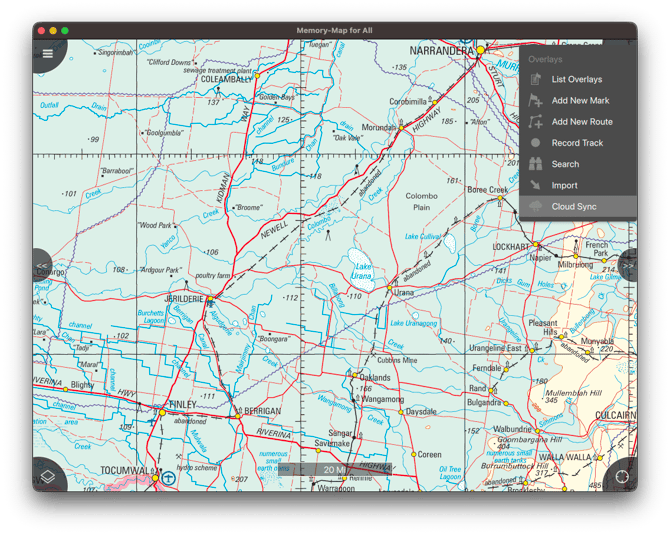
Click on the button in the top right corner (flag with a squiggly line) to open the Overlays menu.
-
Click on “Cloud Sync”. This will download all of your imported tracks that you previously uploaded to the cloud.
-
-
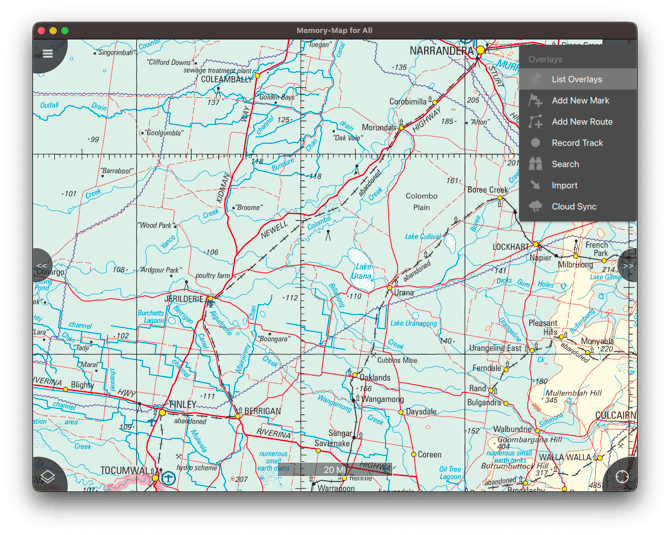
Once the cloud sync has completed, you will return to the map screen. Click on the button in the top right corner (flag with a squiggly line) to open the Overlays menu again.
-
Press on "list Overlays".
-
-
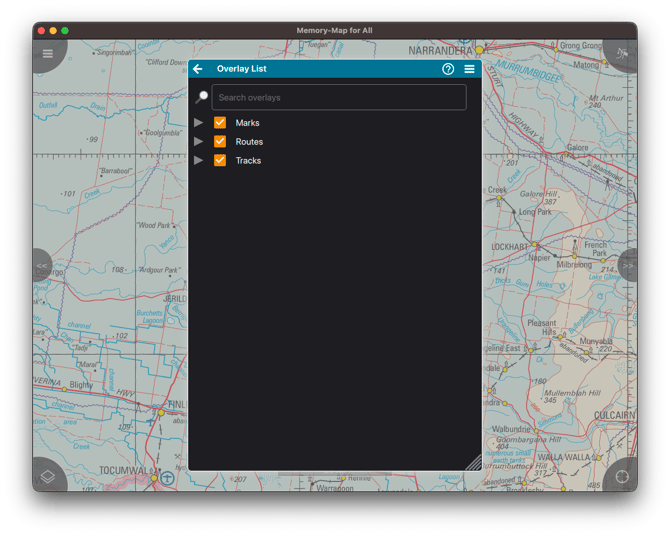
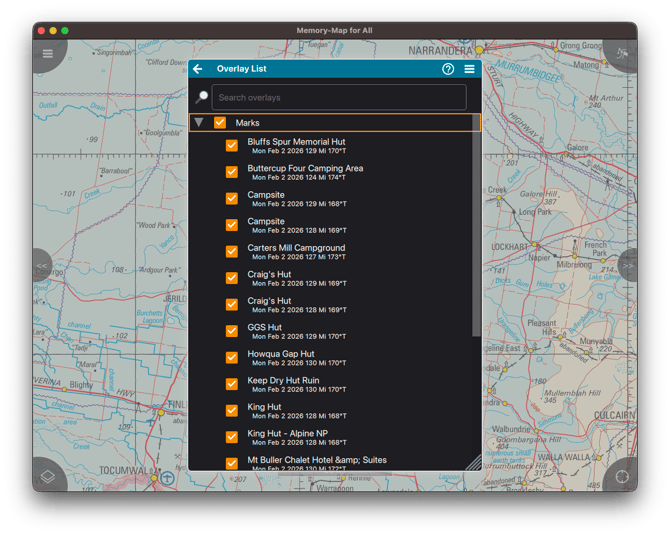
A list of data will be displayed, separated into categories: Waypoints (marks), Routes and Tracks.
-
You can export data in bulk by categories, by folder, or export an individual track.
-
-
To view individual files, collapse each data category by pressing “Marks”, “Routes”, or "Tracks”
-
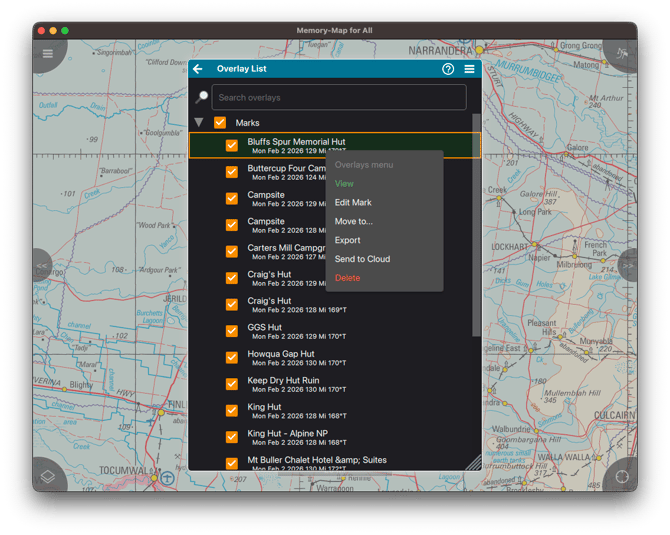
Tap-and-hold or Right-click on the Category or individual overlay item you wish to save.
-
When the Overlays menu appears, press the "Export" button.
-
-
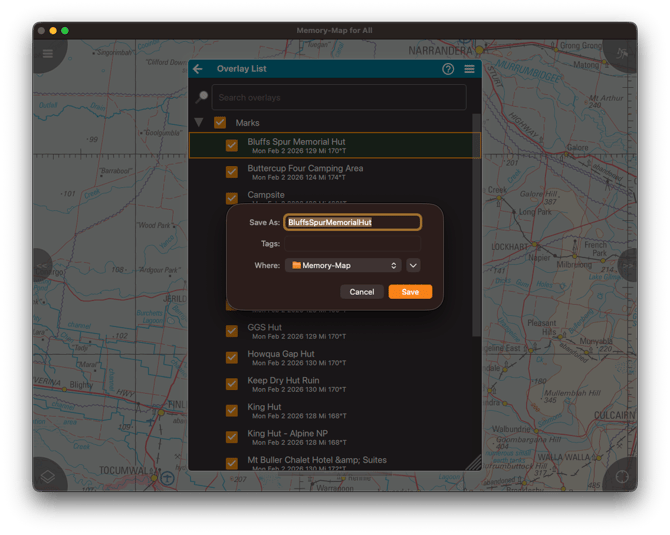
The location and appearance of the export menu will vary depending on your computer’s operating system. The example shown here is from a Mac.
-
Choose a file name and a save location, then click “Save” to store the file on your computer.
-
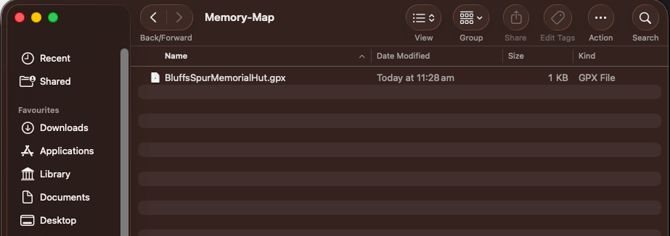
- Using your computer’s file browser, navigate to the location you selected and confirm that the file has been saved successfully.