---
title: NS1000 - New Software Update and Activation
description: A Step-by-Step Guide to Installing and Activating your Hema Nav Subscription.
---
[Skip to content](https://kb.hemamaps.com/ns1000-activation#main-content)
English
Show submenu for translations
[Submit a ticket](https://kb.hemamaps.com/kb-tickets/new?hsLang=en) [Customer portal](https://kb.hemamaps.com/tickets-view?hsLang=en)
.png?width=128&height=72&name=Hema%20Maps%20Logo%20(1).png)
Open main navigation
Close main navigation
- English
Show submenu for translations
- [Submit a ticket](https://kb.hemamaps.com/kb-tickets/new)
- [Customer portal](https://kb.hemamaps.com/tickets-view)
- [Shop](https://hemamaps.com/)
[Shop](https://hemamaps.com/)
How can we help?
- There are no suggestions because the search field is empty.
1. [Knowledge Base](https://kb.hemamaps.com/?hsLang=en)
2. [NS1000](https://kb.hemamaps.com/ns1000?hsLang=en)
# NS1000 - New Software Update and Activation
## A Step-by-Step Guide to Installing and Activating your Hema Nav Subscription.
### Contents
- [Updating your firmware](https://kb.hemamaps.com/ns1000-activation#firmware-update)
- [Connecting to Wi-Fi](https://kb.hemamaps.com/ns1000-activation#connecting-to-wifi)
- [Downloading Firmware Update](https://kb.hemamaps.com/ns1000-activation#downloading-firmware-update)
- [Using the New Software](https://kb.hemamaps.com/ns1000-activation#using-the-new-software)
- [Logging In](https://kb.hemamaps.com/ns1000-activation#logging-in)
- - [Updating Maps](https://kb.hemamaps.com/ns1000-activation#updating-maps)
- [Hema Nav](https://kb.hemamaps.com/ns1000-activation#hema-nav)
- [Activating your Licence](https://kb.hemamaps.com/ns1000-activation#activating-your-licence)
- [30-Day Trial Period](https://kb.hemamaps.com/ns1000-activation#thirty-day-trial)
- [3-Year Subscription](https://kb.hemamaps.com/ns1000-activation#three-year-subscription)
### Updating the firmware
#### 1. Connecting to Wi-Fi
- Navigate to: **Settings \> System \> Wi-Fi**
- **Toggle the switch** in the top-right corner to enable Wi-Fi.
- Select your **Wi-Fi network** from the available list.
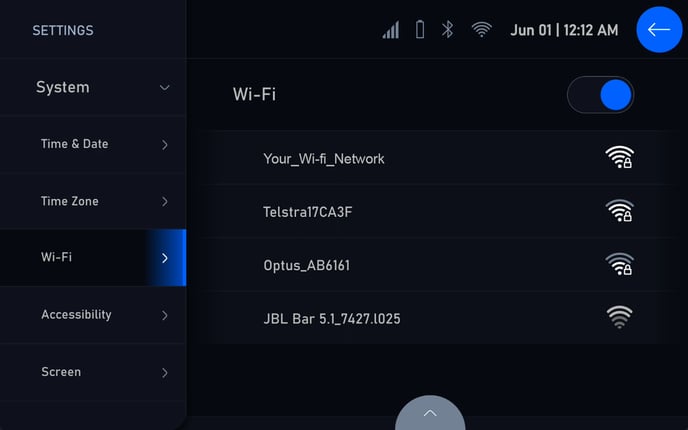
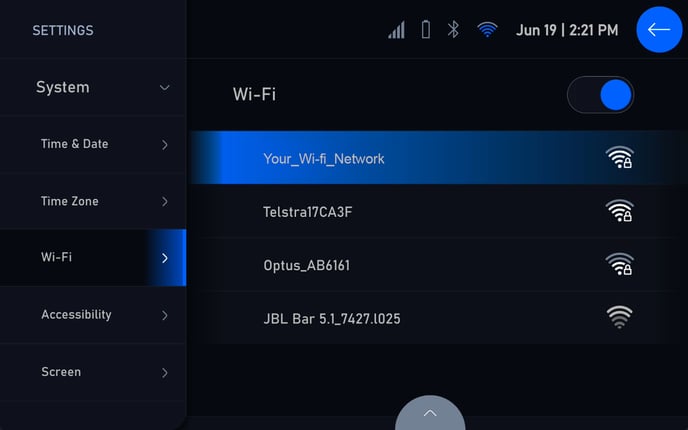
- Enter your **Wi-Fi password** when prompted and verify a successful connection:
- Your network name will be highlighted in the list.
- The Wi-Fi icon at the top of the screen will turn solid/coloured.
#### 2. Downloading Firmware Update
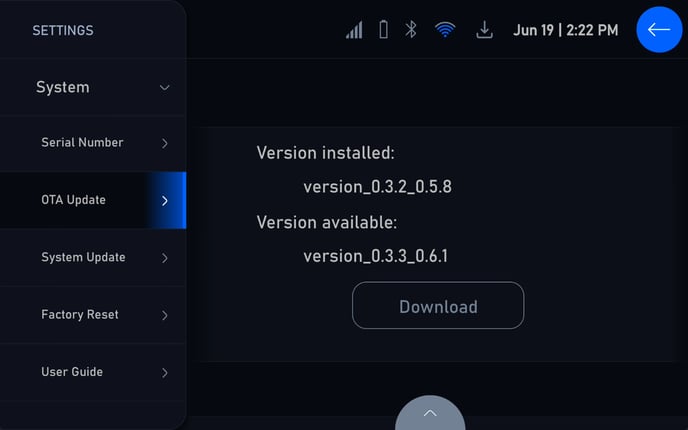
- Navigate to: **Settings \> System \> OTA Update**
- Press the **Download** button to begin the firmware download.
- The system will display the progress of the download and installation.
- Keep your vehicle on and connected to Wi-Fi.
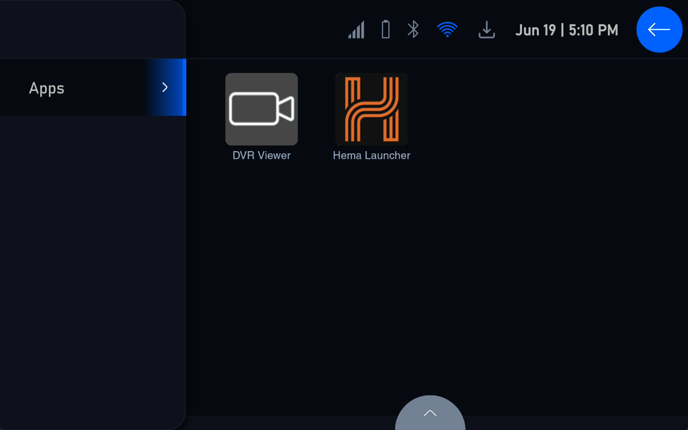
- After the installation has finished, navigate to the **Apps** menu.
- Press on the new **Hema Launcher** icon.
### Using the New Software
#### **3. Logging in**
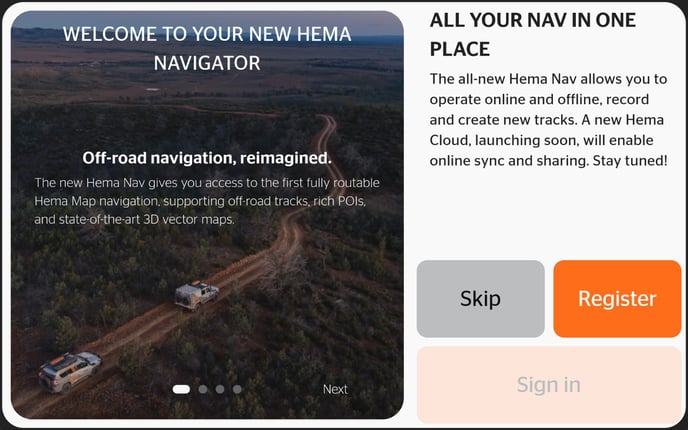
- On first launch, you'll see an introductory screen.
- Choose either:
- **Skip** (Continue as a guest).
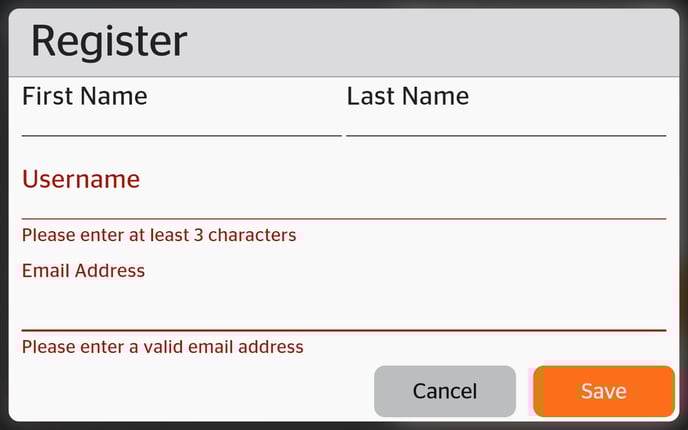
- **Register** (Optional - recommended for full feature access).
#### **4. Updating maps:**
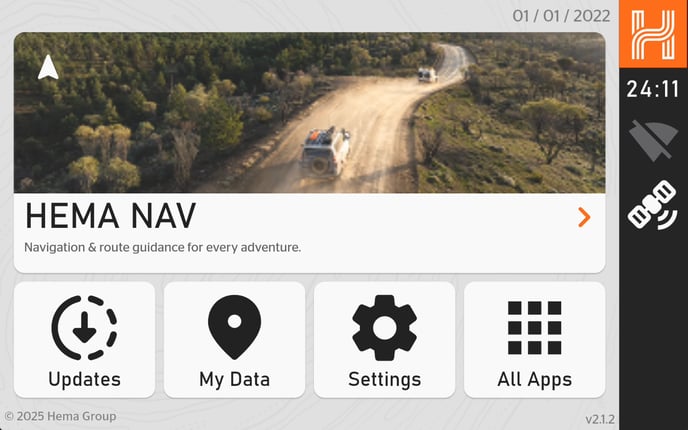
- You'll be taken to the new Home screen.
- Press the "**Updates**" button in the bottom-left corner.
- This page contains updates for Hema Nav.
- Available updates/downloads will have an orange button with the latest version inside it.
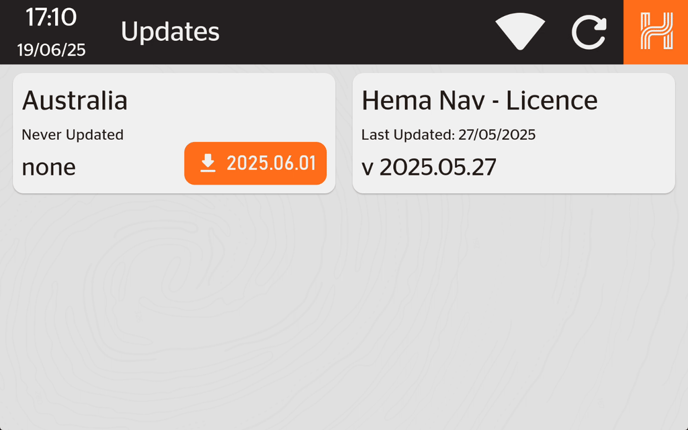
- **Press on the orange button** to begin the download.
- Monitor the progress of the download by looking at the **percentage number and/or time remaining.**
- Please note that the "Australia" download will take some time to complete.
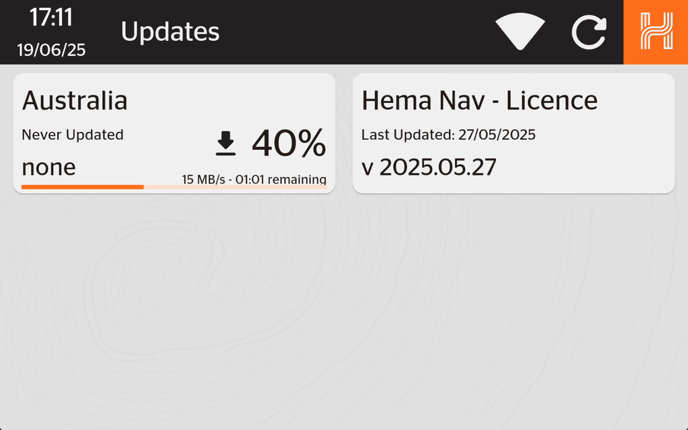
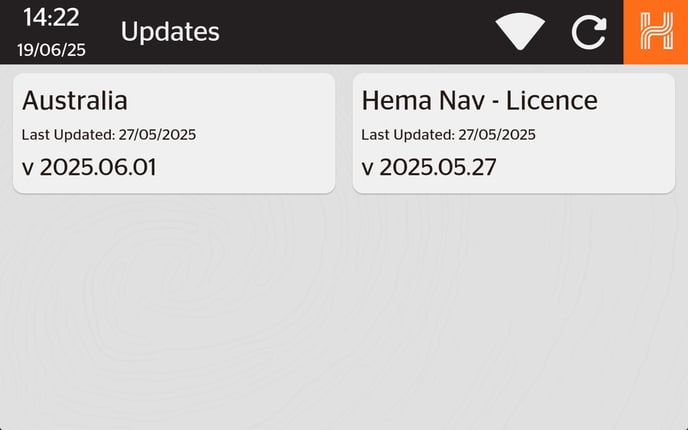
- Once the update is complete, the **card will turn green** and a button with **"Install"** will appear. **Press "Install"**.
- A pop-up will appear showing the installation progress.
- Once it is done, the heading will say **"Done"** and an **orange button saying "Ok"** will appear. **Press "Ok".**
- Return to the **Home Screen** by pressing the **"H"** button in the top right corner.
#### 
### Activating your Licence
#### Activating 30-Day Trial Period
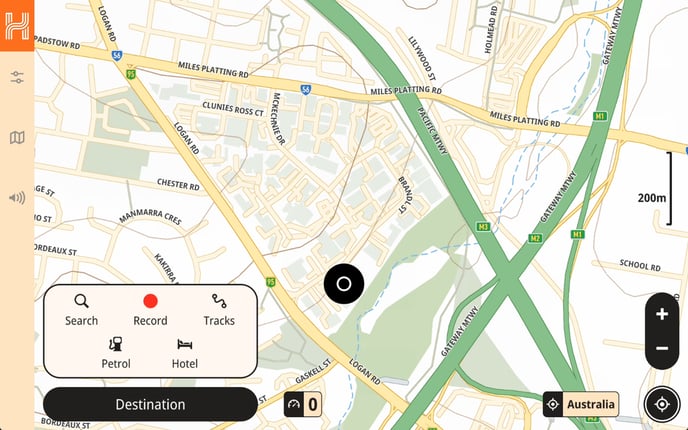
- From the **Home Screen**, press on **"HEMA NAV"**.
- Once the program has loaded, **press on the "H"** in the top right corner to bring up the side navigation panel.
#### Activating 3-Year Subscription
- After thirty days, you will see a screen saying that your **30-day free trial period has ended**.
- If you wish to to continue using Hema Nav, **press "Activate Device".**
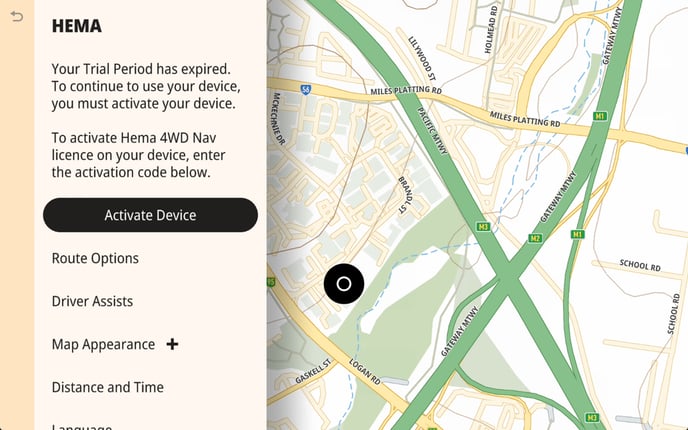
- A new screen will appear with steps for activating your device.
- **Scan the QR code or navigate to the link** to reach the store page for the 3-year Hema Nav subscription
- Once you've purchased the subscription, you will receive an **email containing an activation code**. Please note that this may take up to ten minutes to arrive.
- **Press on "Activation Code"** and **type in the code** you received. **Press the "Activate Device" button** once more.
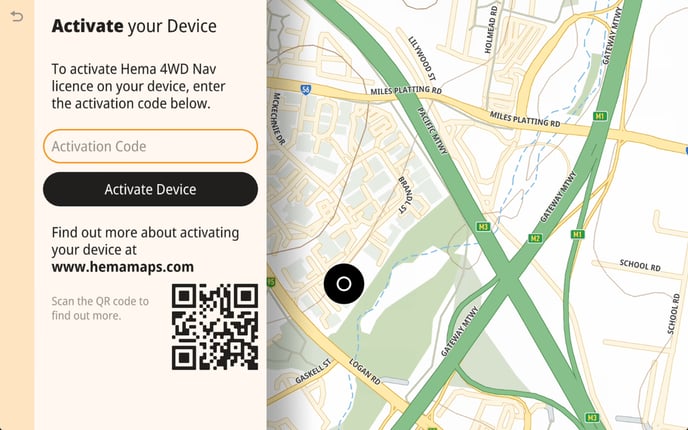
- If the code was correct, you will receive a **"Success" message**. **Press the "Okay" button**.
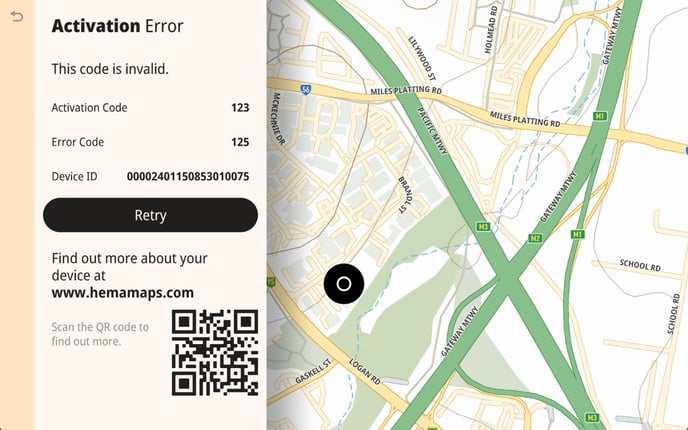
- If the code was incorrect, you will see a new screen that **says "Activation Error"**.
- Check that the code is typed correctly and without any spaces.
- If you believe the code you entered is correct, please reach out to our Technical Support team for assistance.
- [Hema Nav - 2026 August Updates](https://kb.hemamaps.com/hema-nav-2026-august-updates?hsLang=en)
- [HR-1 NAV](https://kb.hemamaps.com/hr-1-nav?hsLang=en)
- [Alpine NaviStick](https://kb.hemamaps.com/alpine-navistick?hsLang=en)
- [HX-BOX](https://kb.hemamaps.com/hx-box?hsLang=en)
- [Hema Nav](https://kb.hemamaps.com/hema-nav?hsLang=en#main-content)
- [Installing the new software](https://kb.hemamaps.com/hema-nav?hsLang=en#installing-the-new-software)
- [Tips & Tricks](https://kb.hemamaps.com/hema-nav?hsLang=en#tips-tricks)
- [Updates and Announcements](https://kb.hemamaps.com/hema-nav?hsLang=en#updates-and-announcements)
- [Troubleshooting](https://kb.hemamaps.com/hema-nav?hsLang=en#troubleshooting)
- [Hema Nav User Manual](https://kb.hemamaps.com/hema-nav?hsLang=en#hema-nav-user-manual)
- [Hema University Webinar](https://kb.hemamaps.com/hema-nav?hsLang=en#hema-university-webinar)
- [HR-1](https://kb.hemamaps.com/hr-1?hsLang=en)
- [HX-2 Plus](https://kb.hemamaps.com/hx-2-plus?hsLang=en#main-content)
- [General](https://kb.hemamaps.com/hx-2-plus?hsLang=en#general)
- [HX-2](https://kb.hemamaps.com/hx-2?hsLang=en#main-content)
- [General](https://kb.hemamaps.com/hx-2?hsLang=en#general)
- [Deep Dive](https://kb.hemamaps.com/hx-2?hsLang=en#deep-dive)
- [Aerpro - AMHXD3](https://kb.hemamaps.com/aerpro-amhxd3?hsLang=en#main-content)
- [Other](https://kb.hemamaps.com/aerpro-amhxd3?hsLang=en#other)
- [NS1000](https://kb.hemamaps.com/ns1000?hsLang=en)
- [4x4 Explorer](https://kb.hemamaps.com/4x4-explorer?hsLang=en#main-content)
- [General](https://kb.hemamaps.com/4x4-explorer?hsLang=en#general)
- [Guides and How tos](https://kb.hemamaps.com/4x4-explorer?hsLang=en#guides-and-how-tos)
- [App Store Management](https://kb.hemamaps.com/4x4-explorer?hsLang=en#app-store-management)
- [Troubleshooting](https://kb.hemamaps.com/4x4-explorer?hsLang=en#troubleshooting)
- [Updates and Announcements](https://kb.hemamaps.com/4x4-explorer?hsLang=en#updates-and-announcements)
- [Hema 4WD Maps](https://kb.hemamaps.com/hema-4wd-maps?hsLang=en#main-content)
- [General](https://kb.hemamaps.com/hema-4wd-maps?hsLang=en#general)
- [Memory Map](https://kb.hemamaps.com/hema-4wd-maps?hsLang=en#memory-map)
- [Updates and Announcements](https://kb.hemamaps.com/hema-4wd-maps?hsLang=en#updates-and-announcements)
- [iOS](https://kb.hemamaps.com/hema-4wd-maps?hsLang=en#ios)
- [Android](https://kb.hemamaps.com/hema-4wd-maps?hsLang=en#android)
- [Hema Explorer (Legacy App)](https://kb.hemamaps.com/hema-explorer-legacy-app?hsLang=en#main-content)
- [General](https://kb.hemamaps.com/hema-explorer-legacy-app?hsLang=en#general)
- [iOS](https://kb.hemamaps.com/hema-explorer-legacy-app?hsLang=en#ios)
- [Android](https://kb.hemamaps.com/hema-explorer-legacy-app?hsLang=en#android)
- [App Store Management](https://kb.hemamaps.com/hema-explorer-legacy-app?hsLang=en#app-store-management)
- [HX-1 (Legacy Unit)](https://kb.hemamaps.com/hx-1-legacy-unit?hsLang=en#main-content)
- [General](https://kb.hemamaps.com/hx-1-legacy-unit?hsLang=en#general)
- [Drive](https://kb.hemamaps.com/hx-1-legacy-unit?hsLang=en#drive)
- [Explore](https://kb.hemamaps.com/hx-1-legacy-unit?hsLang=en#explore)
- [HN7 (Legacy Unit)](https://kb.hemamaps.com/hn7-legacy-unit?hsLang=en#main-content)
- [General](https://kb.hemamaps.com/hn7-legacy-unit?hsLang=en#general)
- [HN7](https://kb.hemamaps.com/hn7-legacy-unit?hsLang=en#hn7)
- [HN6](https://kb.hemamaps.com/hn7-legacy-unit?hsLang=en#hn6)
- [HN5](https://kb.hemamaps.com/hn7-legacy-unit?hsLang=en#hn5)
- [iGO - Street](https://kb.hemamaps.com/hn7-legacy-unit?hsLang=en#igo-street)
- [OziExplorer - 4WD](https://kb.hemamaps.com/hn7-legacy-unit?hsLang=en#oziexplorer-4wd)
- [Garmin Navigators](https://kb.hemamaps.com/garmin-navigators?hsLang=en)
- [User Manuals / eGuides](https://kb.hemamaps.com/user-manuals-eguides?hsLang=en#main-content)
- [GPS Navigators](https://kb.hemamaps.com/user-manuals-eguides?hsLang=en#gps-navigators)
- [Apps](https://kb.hemamaps.com/user-manuals-eguides?hsLang=en#apps)
- [Hema Accessories](https://kb.hemamaps.com/user-manuals-eguides?hsLang=en#hema-accessories)
- [General](https://kb.hemamaps.com/general?hsLang=en#main-content)
- [General](https://kb.hemamaps.com/general?hsLang=en#general)
- [GPS Navigators](https://kb.hemamaps.com/general?hsLang=en#gps-navigators)
- [Apps](https://kb.hemamaps.com/general?hsLang=en#apps)
- [iOS](https://kb.hemamaps.com/general?hsLang=en#ios)
- [Android](https://kb.hemamaps.com/general?hsLang=en#android)
- [PC](https://kb.hemamaps.com/pc?hsLang=en#main-content)
- [General](https://kb.hemamaps.com/pc?hsLang=en#general)
- [Hema Navigator Explorer](https://kb.hemamaps.com/pc?hsLang=en#hema-navigator-explorer)
- [Online Training](https://kb.hemamaps.com/online-training?hsLang=en)
- [Legacy Unit Repairs](https://kb.hemamaps.com/legacy-unit-repairs?hsLang=en)
[.png?width=228&height=128&name=Hema%20Maps%20Logo%20(1).png "Hema Maps Logo (1)")](https://www.hemamaps.com/)
**Address**
3 Wyman Pl, Braeside VIC 3195
**Contact us**
03 7054 4300
10 AM - 4 PM AEST
[appsupport@hemagroup.com.au](mailto:appsupport@hemagroup.com.au)
Copyright © 2026, Hema Maps
```json
{
"@context" : "https://schema.org",
"@type" : "VideoObject",
"caption" : {
"@type" : "MediaObject",
"contentUrl" : "https://kb.hemamaps.com/media-transcripts/191825741059/en.vtt",
"inLanguage" : "en",
"name" : "en Captions"
},
"contentUrl" : "https://stream.mux.com/SDOpzjQRrJrs5LPQWnxFUZpbByGcxz8og13T01vBU01jU/capped-1080p.mp4",
"dateModified" : "2025-06-26T06:11:59.594Z",
"duration" : "PT7S",
"height" : 932,
"name" : "ns1000_install_maps_smaller",
"thumbnailUrl" : "https://5034185.fs1.hubspotusercontent-na1.net/hubfs/5034185/ns1000_install_maps_smaller.mp4/medium.jpg",
"uploadDate" : "2025-06-26T06:11:44.311Z",
"width" : 1490
}
```
```json
{
"@context" : "https://schema.org",
"@type" : "VideoObject",
"caption" : {
"@type" : "MediaObject",
"contentUrl" : "https://kb.hemamaps.com/media-transcripts/191835868325/en.vtt",
"inLanguage" : "en",
"name" : "en Captions"
},
"contentUrl" : "https://stream.mux.com/P9fGMW8Fr1ce4F5K27pCV7GhLqlzTJQOyjKNp82ci2o/capped-1080p.mp4",
"dateModified" : "2025-06-26T06:12:38.592Z",
"duration" : "PT10S",
"height" : 932,
"name" : "ns1000_nav_expired_smaller",
"thumbnailUrl" : "https://5034185.fs1.hubspotusercontent-na1.net/hubfs/5034185/ns1000_nav_expired_smaller.mp4/medium.jpg",
"uploadDate" : "2025-06-26T06:12:32.439Z",
"width" : 1490
}
```